 WhisperLite
How to use
WhisperLite.
Short guides with real screens from the app. Still stuck? Write to us and we'll reply.
Create your account
You only need a name. No phone number or email.
-
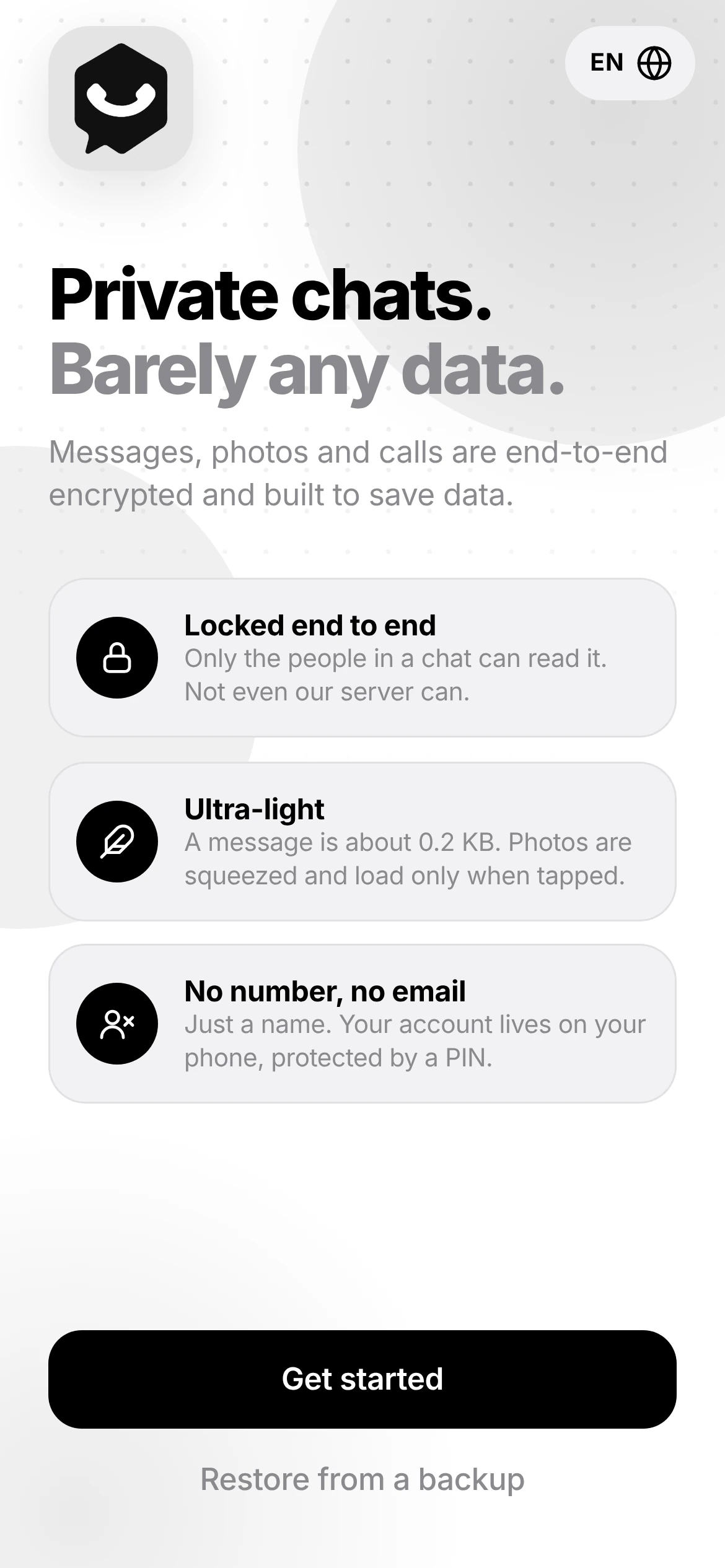 Tap Get startedOpen WhisperLite from Google Play or your browser.
 -
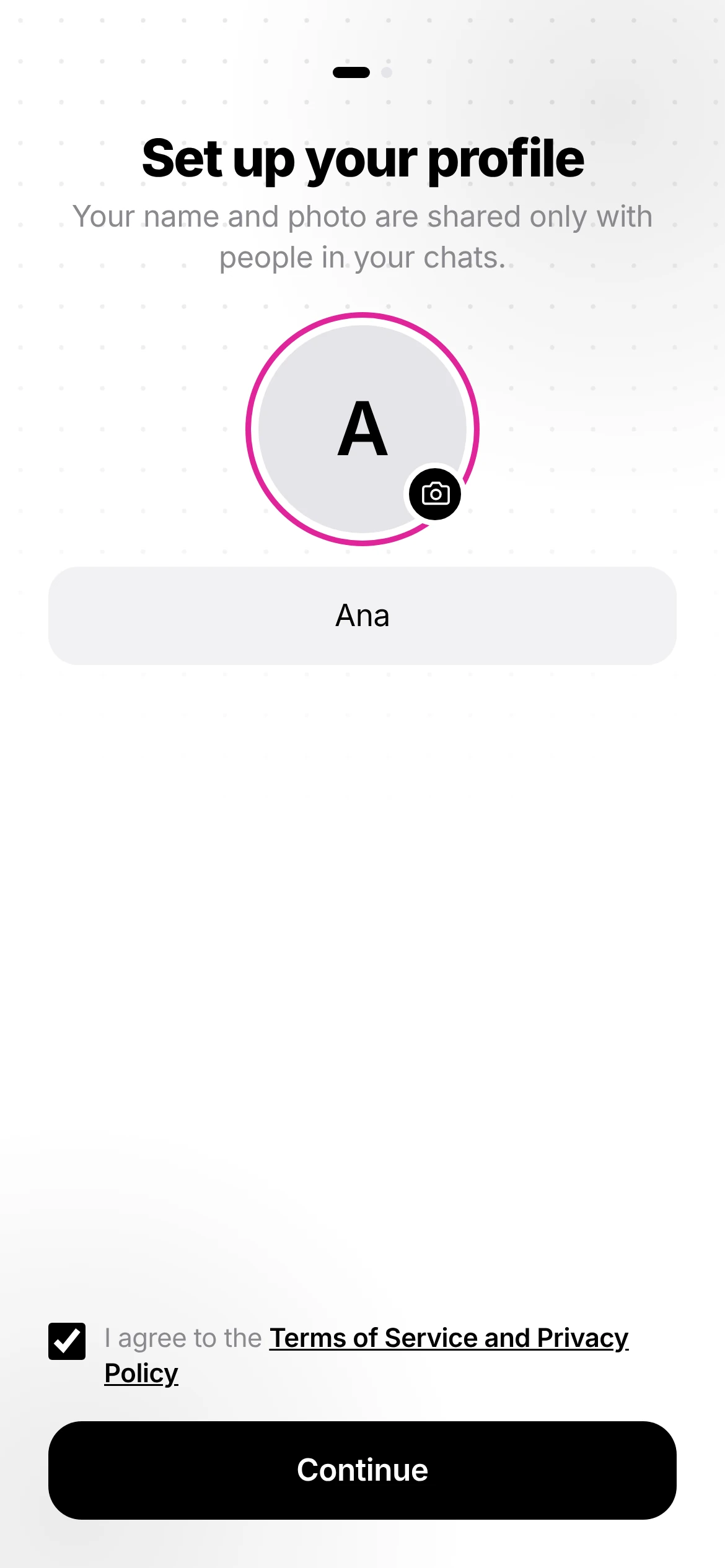 Add your nameAdd a photo if you like, tick the terms, then tap Continue.
 -
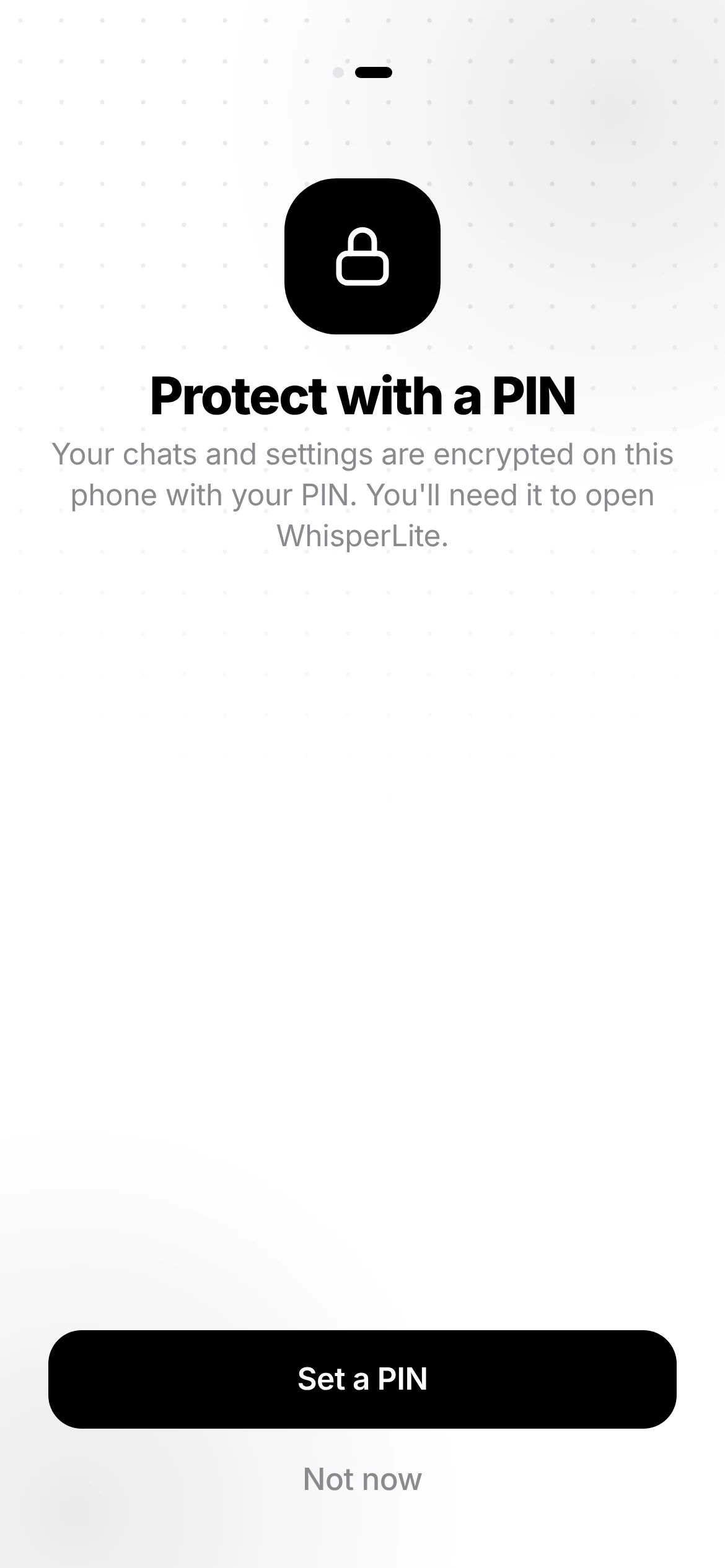 Set a PINIt locks your chats on this phone. You can tap Not now and set it later.
 -
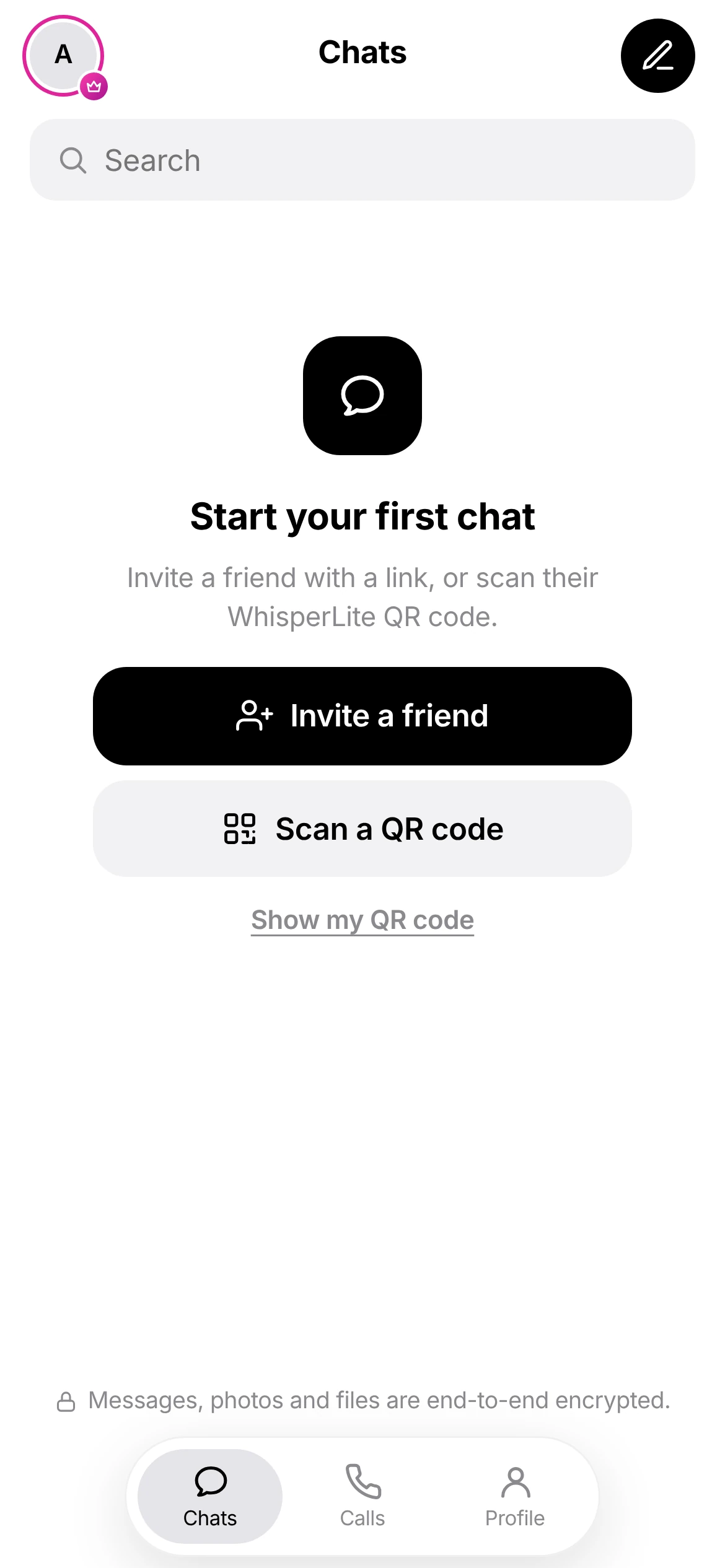 You're inYour chats will appear here.
Invite a friend with a link
A private invite works once and lasts 24 hours.
-
Tap Invite a friendOn the Chats screen, or the pencil at the top right.
-
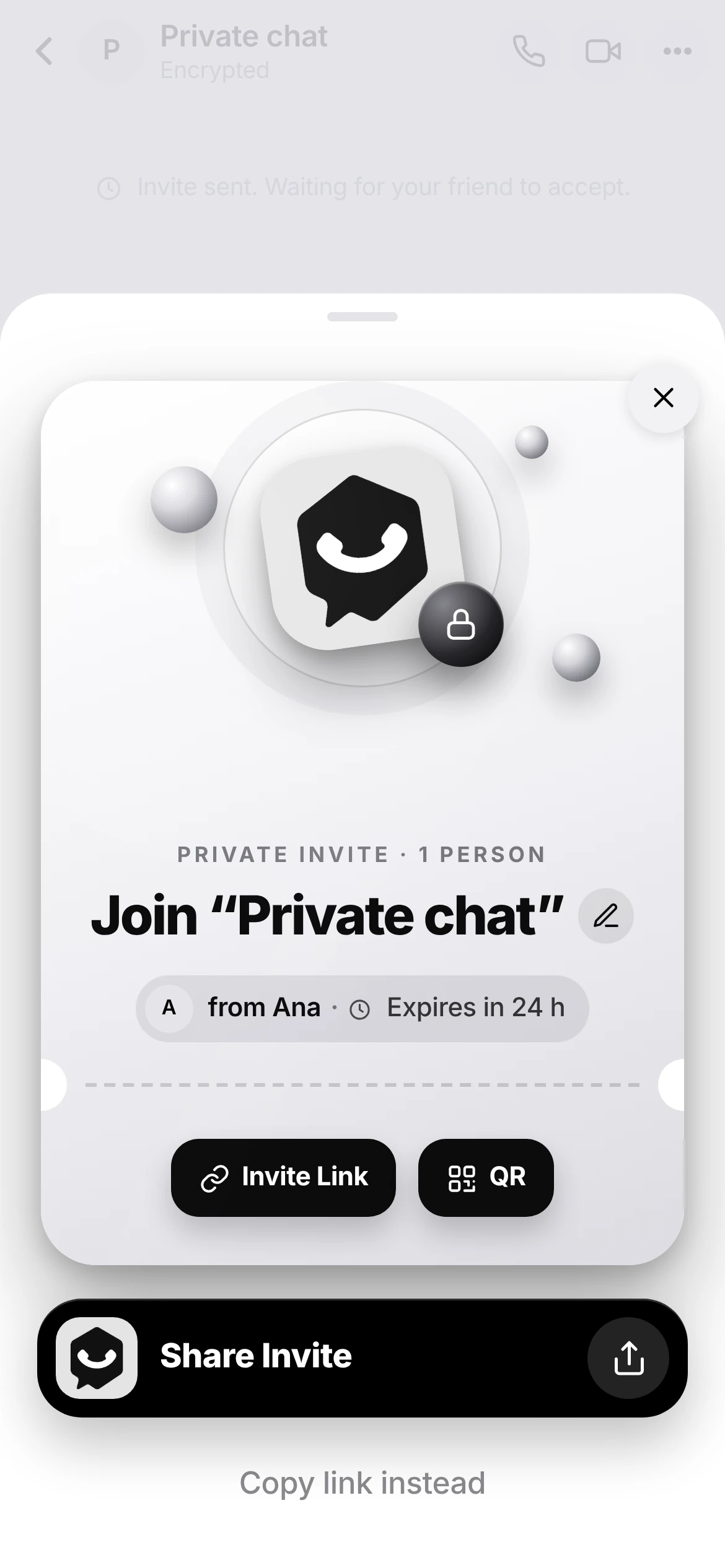 Share the inviteTap Share Invite and send it in any app, or show the QR.
 -
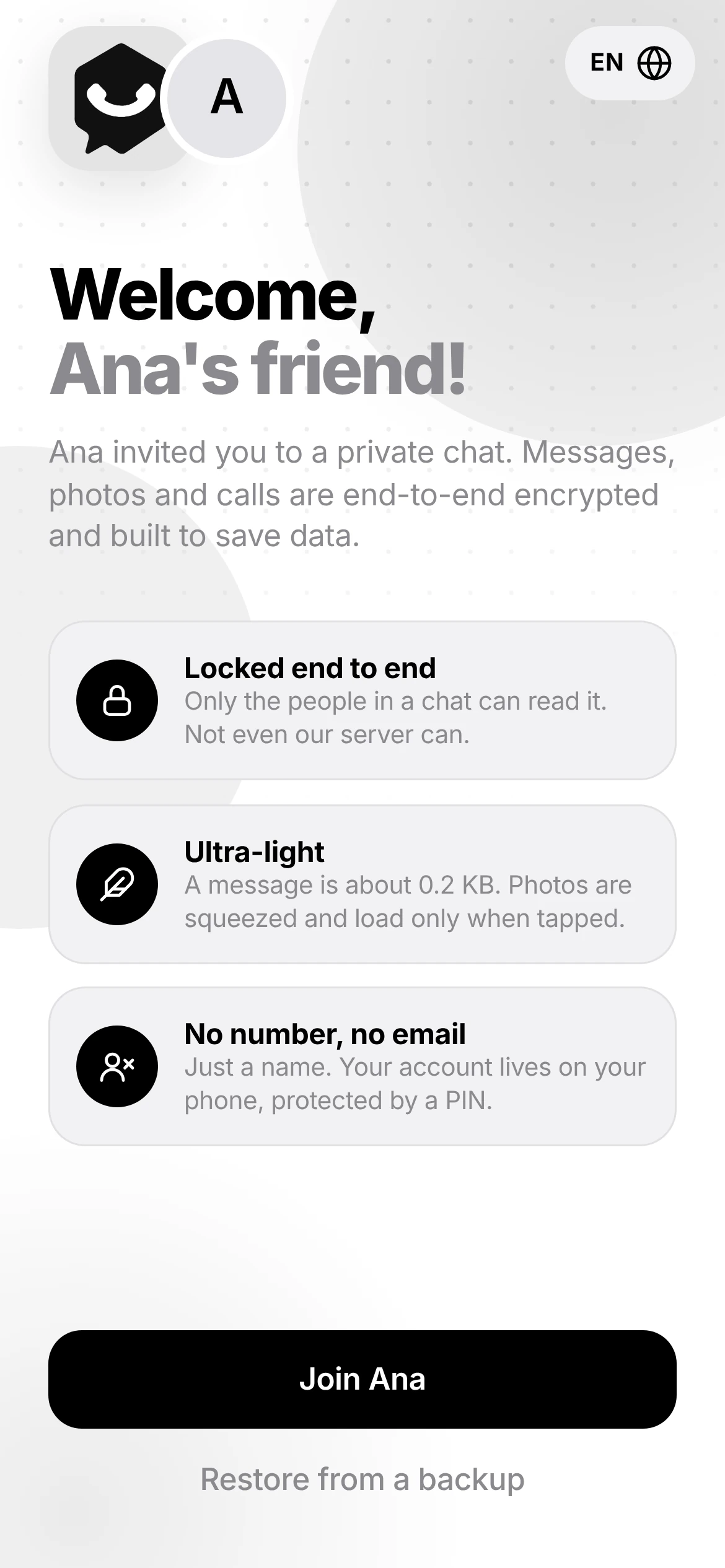 Your friend taps JoinThey add their name and the chat opens for both of you.
 -
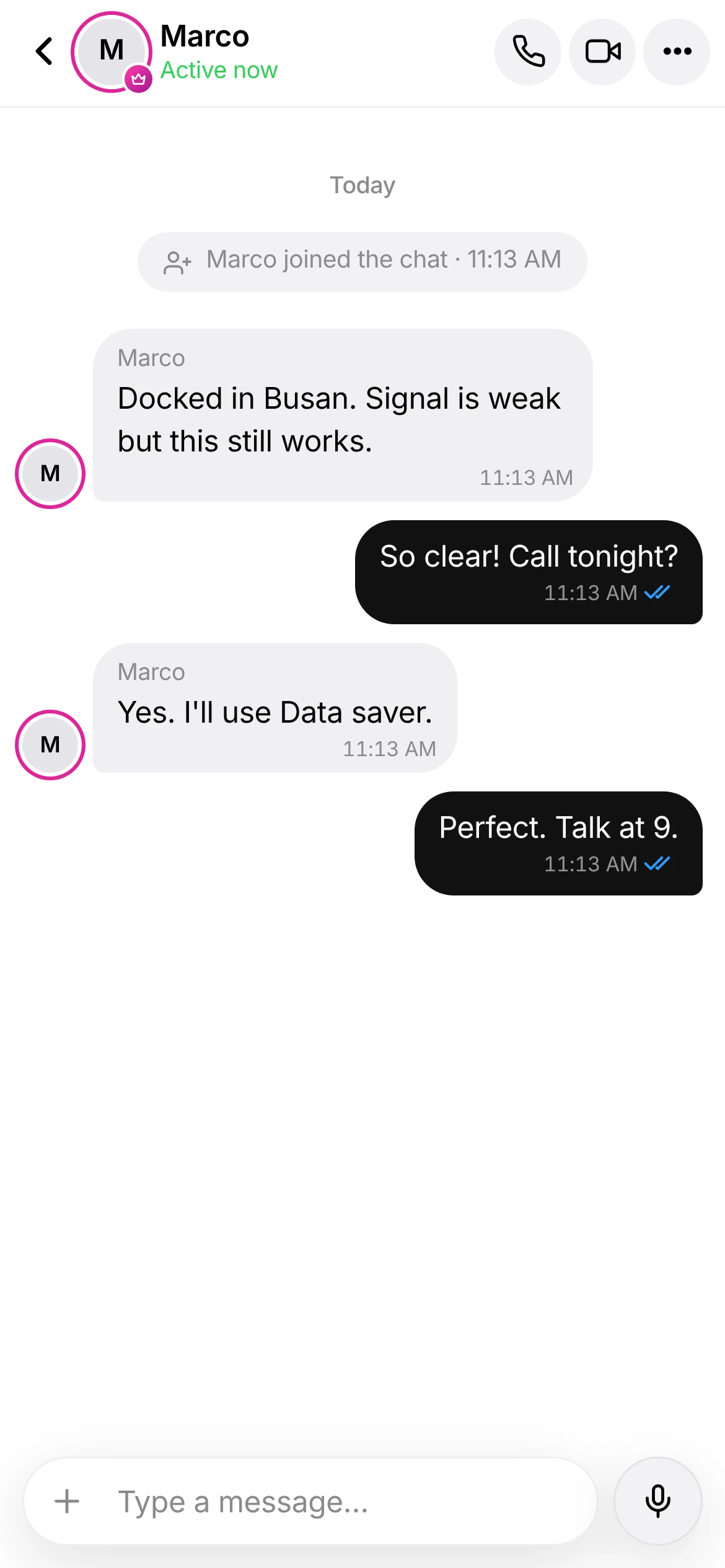 Say hiEverything in the chat is end-to-end encrypted.
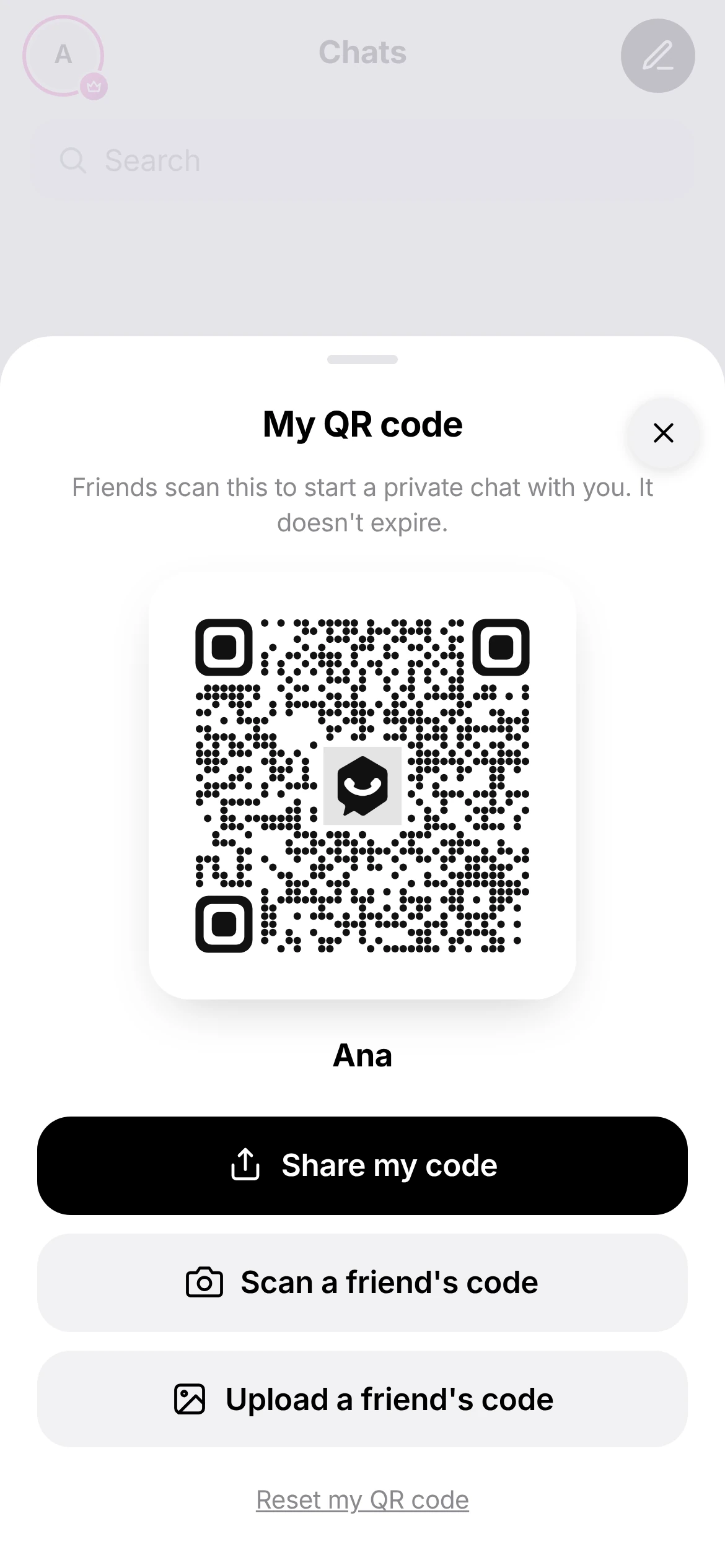
Connect with your QR code
Your QR code doesn't expire. Anyone who scans it can start a private chat with you.
- Open it from Show my QR code on Chats, or Profile → My QR code
- Your friend taps Scan a friend's code
- Got a screenshot of a code? Tap Upload a friend's code
- Reset my QR code makes the old one stop working
Make a low-data call
Tap the phone or video icon at the top of any chat.
-
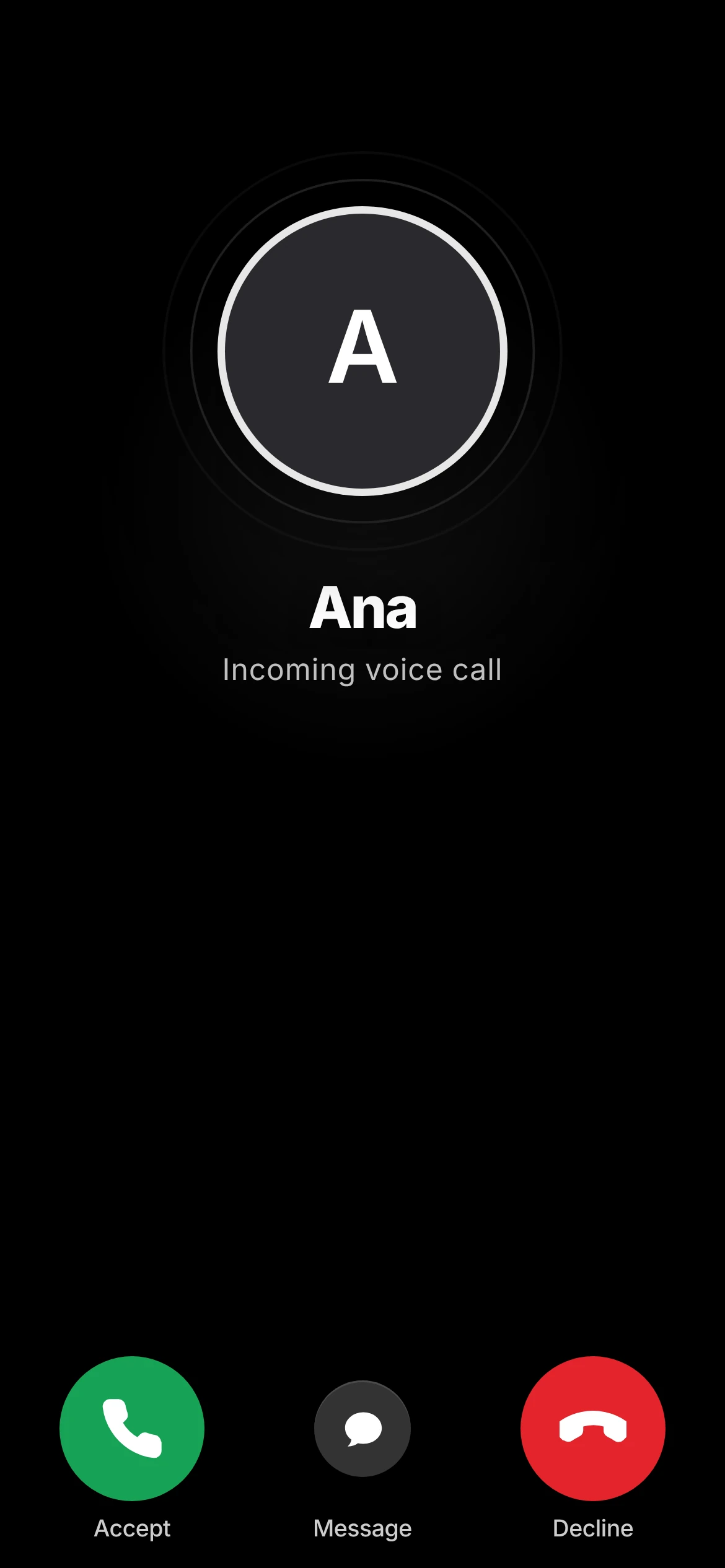 Your friend answersThey can Accept, Decline, or reply with a message.
 -
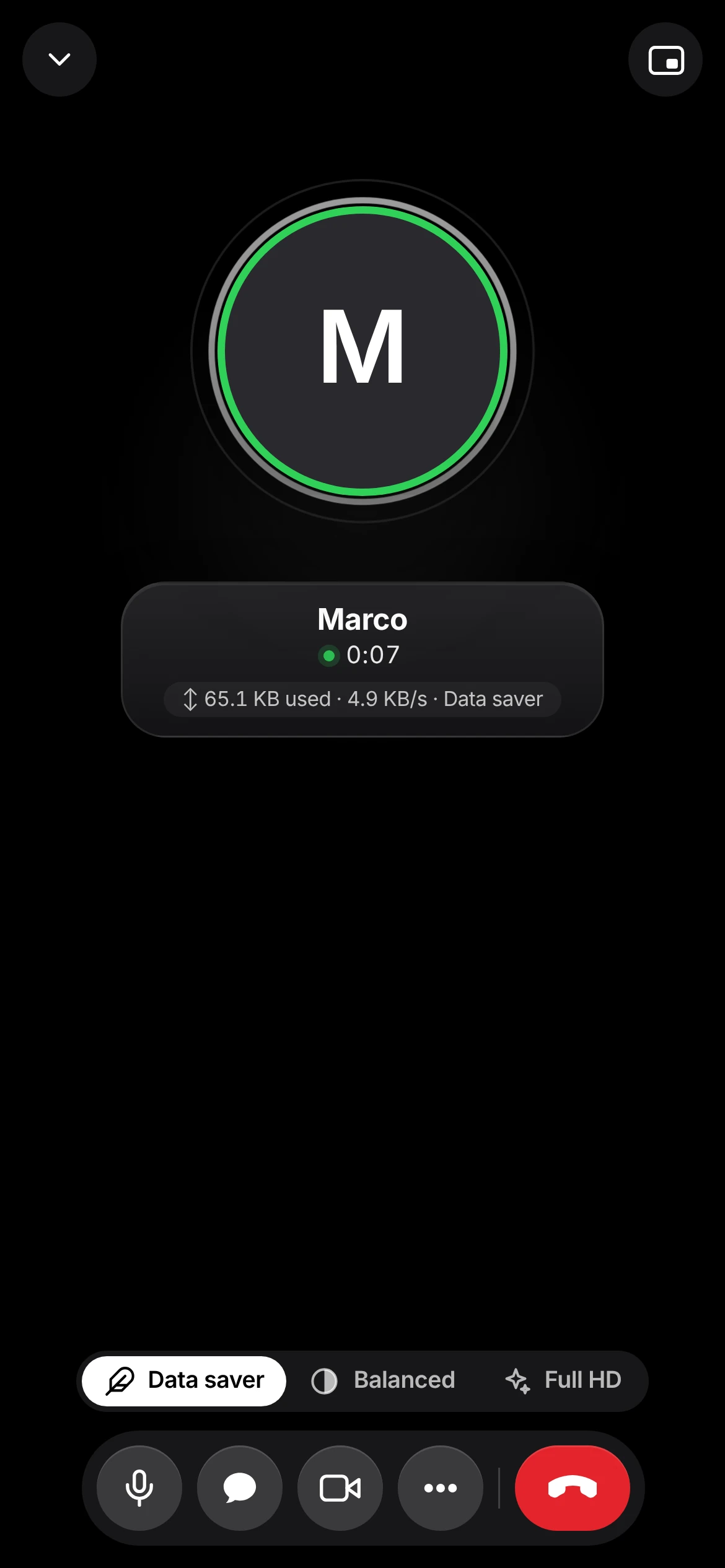 Pick the qualityData saver, Balanced or Full HD. Data used shows live under the name.
Data saver
Mobile data and weak signal.
Balanced
Follows your connection.
Full HD
Wi-Fi. You confirm before switching.
See how much data you saved
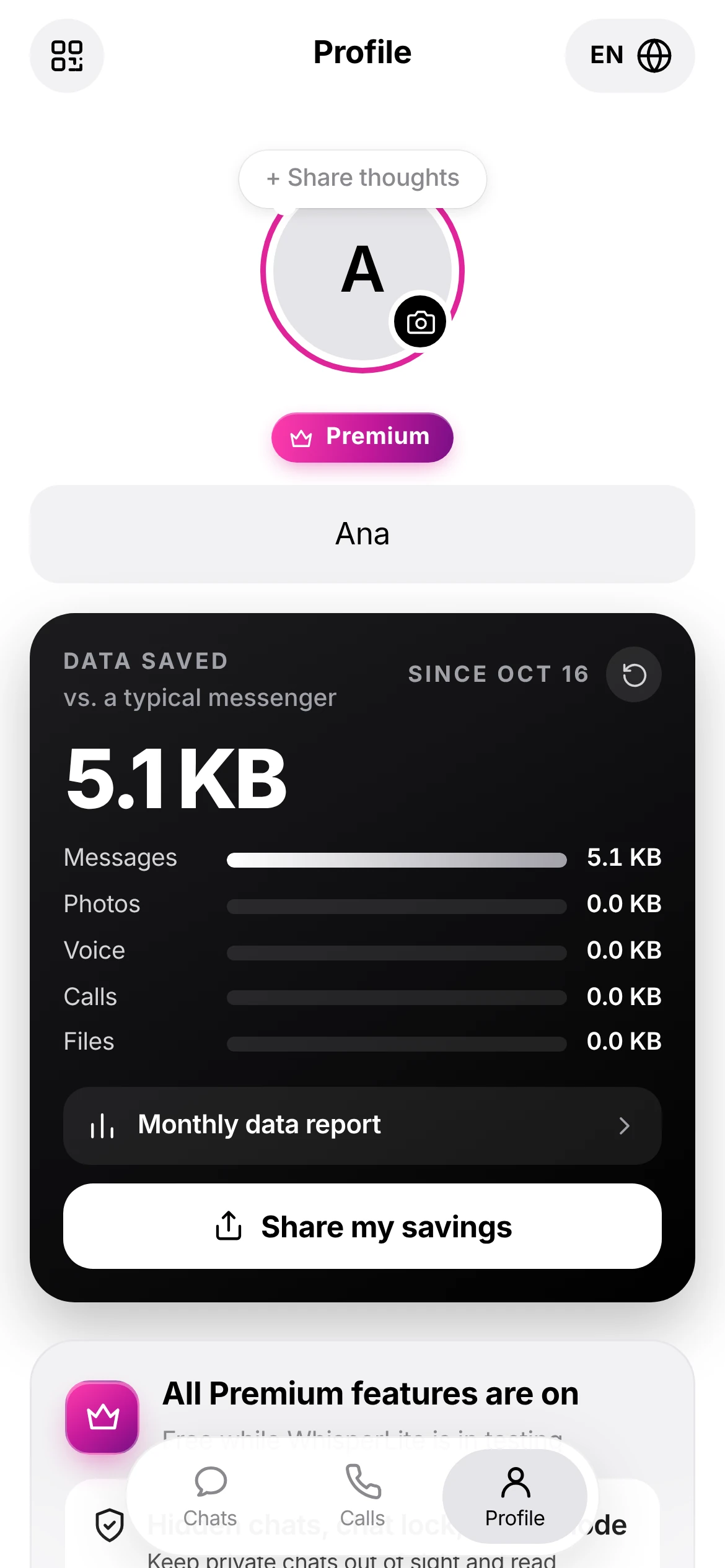
Open Profile. The Data saved card compares your use with a typical messenger.
- Split by messages, photos, voice, calls and files
- Tap Monthly data report for the month's view
- Tap Share my savings to show friends
- The reset button starts the count again
Quick answers
Getting started
Can I use it without installing anything?
Yes. Open whisperlite.stratpollen.com in your phone's browser. Use the browser menu and choose Add to Home screen for quick access.
Is there an iPhone app?
It's coming soon. Until then, iPhone users can use WhisperLite in Safari and add it to the Home Screen.
I got a new phone. How do I move my chats?
Your account lives on your phone. Make a backup on the old phone, then tap Restore from a backup on the welcome screen of the new one.
Chats
My invite link says it no longer works.
Invites last 24 hours and a 1-to-1 invite can only be used once. Ask your friend to send a new one, or scan their QR code instead.
What do the ticks mean?
- One tick: sent.
- Two ticks: delivered to their phone.
- Seen: they've read it.
How do I reply to or react to a message?
Hold the message. You can reply, react or forward it.
Privacy & security
Can anyone else read my messages?
No. Messages are encrypted on your phone before they're sent. Our server only passes on scrambled data it can't read.
How long are messages kept on the server?
Encrypted messages are removed from the server after 30 days. Messages on your phone stay until you delete them.
Account
Can I use two accounts on one phone?
Yes. Go to Profile → Add a second account.
How do I delete my account?
Go to Profile. Delete account is under Add a second account. This permanently removes your account.
How do I contact support?
Email whisperlite-support@stratpollen.com with your phone model and what happened. Screenshots help.